NewAI video studio for YouTube creators
From an idea to a finished video.
Then the next episode, on time.
CreatorOS writes the script, casts characters and voices, makes every shot and clip, and edits it all together. Run whole playlists as series on a schedule. You watch every cut before it goes live.
- No credit card
- A price on every step
- Nothing posts without you
Made with CreatorOS
Stories, series, Shorts and reviews, all made here
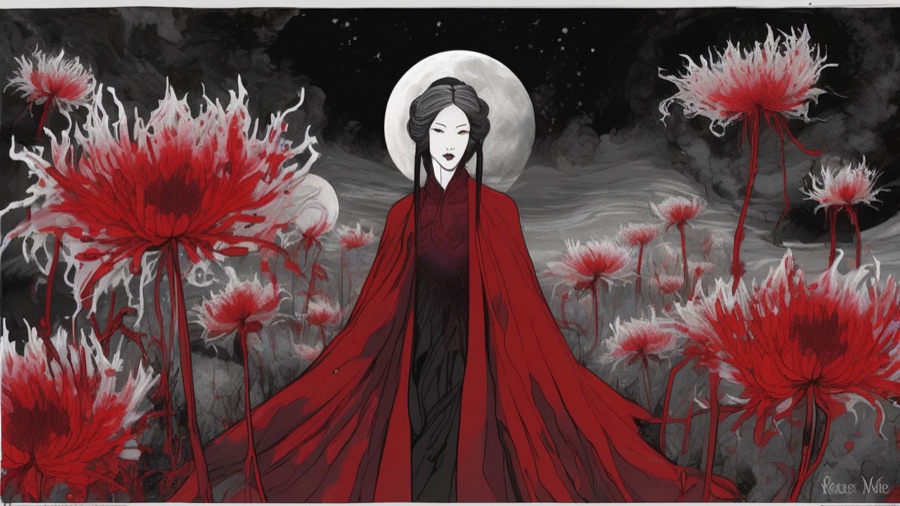
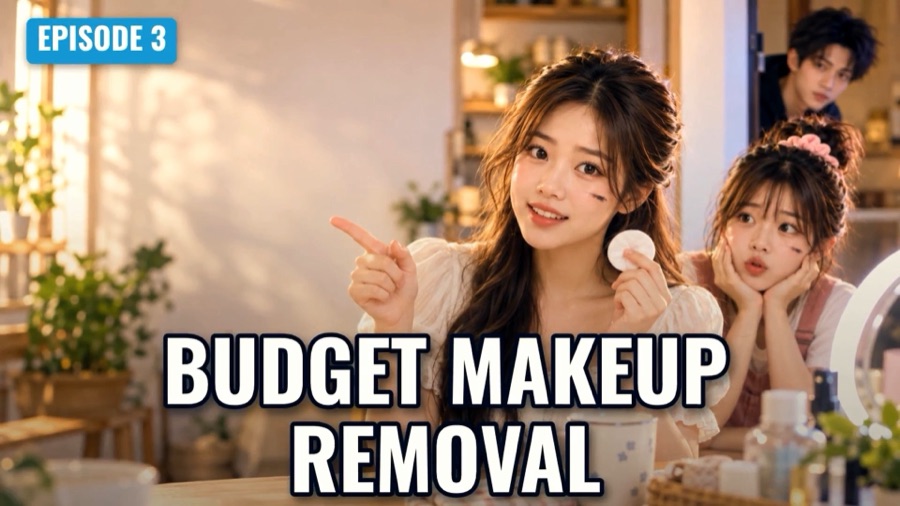
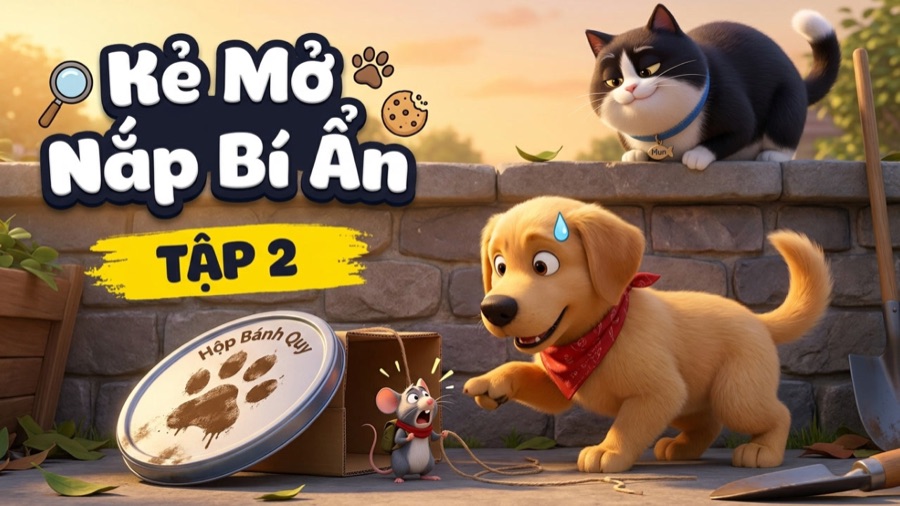
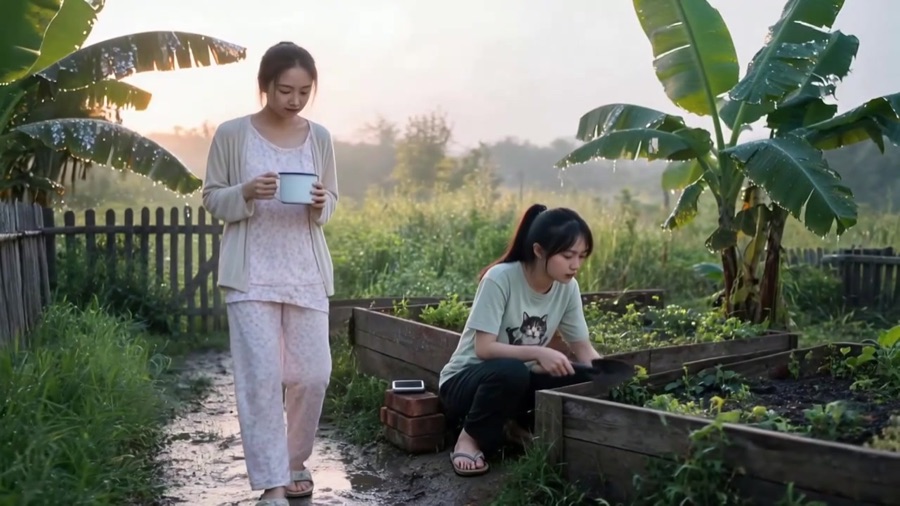
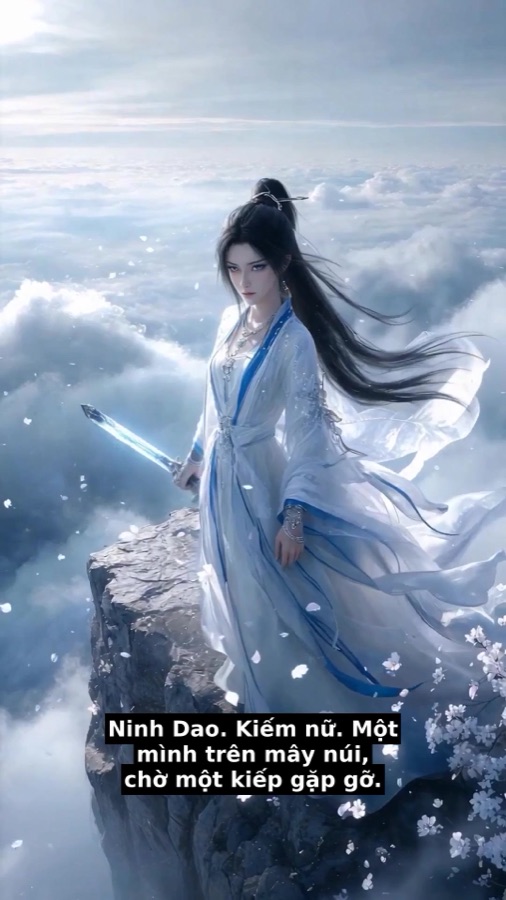
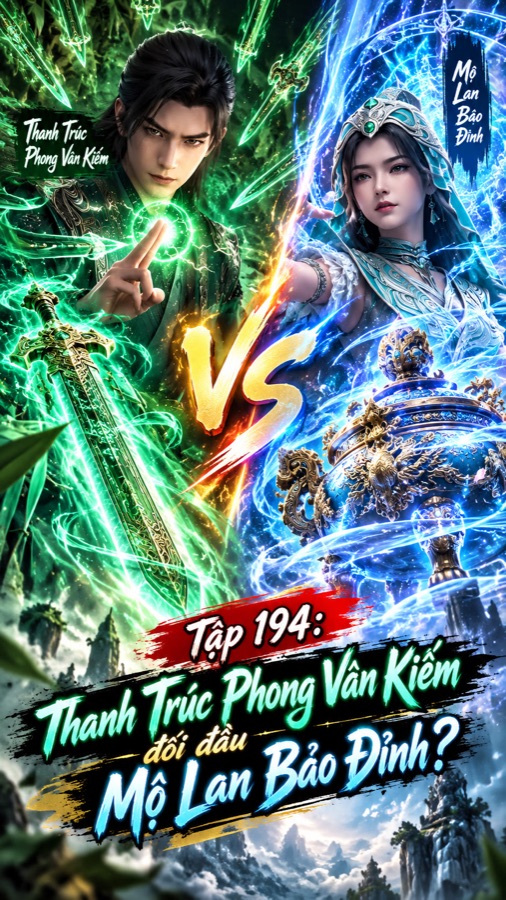
Every picture on this page came out of CreatorOS: published thumbnails and frames from finished videos.














1 · AI Plan
Start with an idea, not a blank timeline
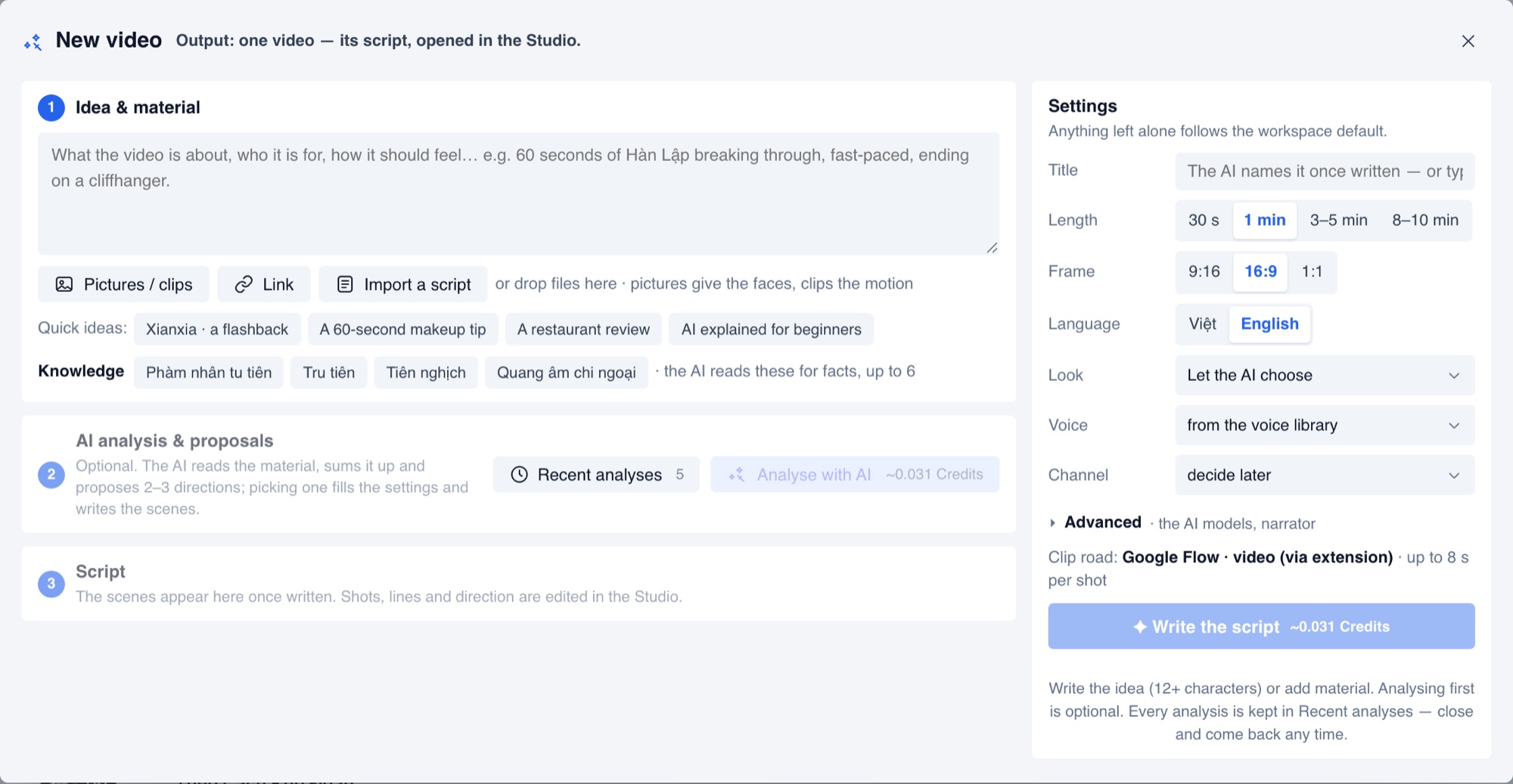
Describe the video, or bring pictures, clips, a link or a script. The AI reads it all and proposes two or three directions. Pick one and it writes the scenes, shots, lines and cast.
- Length, frame (9:16, 16:9, 1:1), language and look in one place
- Your knowledge collections give the AI the facts of your story
- Every analysis is kept, so you can come back to it later
2 · Characters
The same face, from the first shot to the last
Each character gets a profile, a reference sheet and a voice. Each place gets its own picture. Every shot is drawn from them, so people and places stay the same across scenes and episodes.
- Voices cast from the library, one per character
- A narrator with its own personality for each series
- Change a face once, and every shot made next follows








3 · Studio
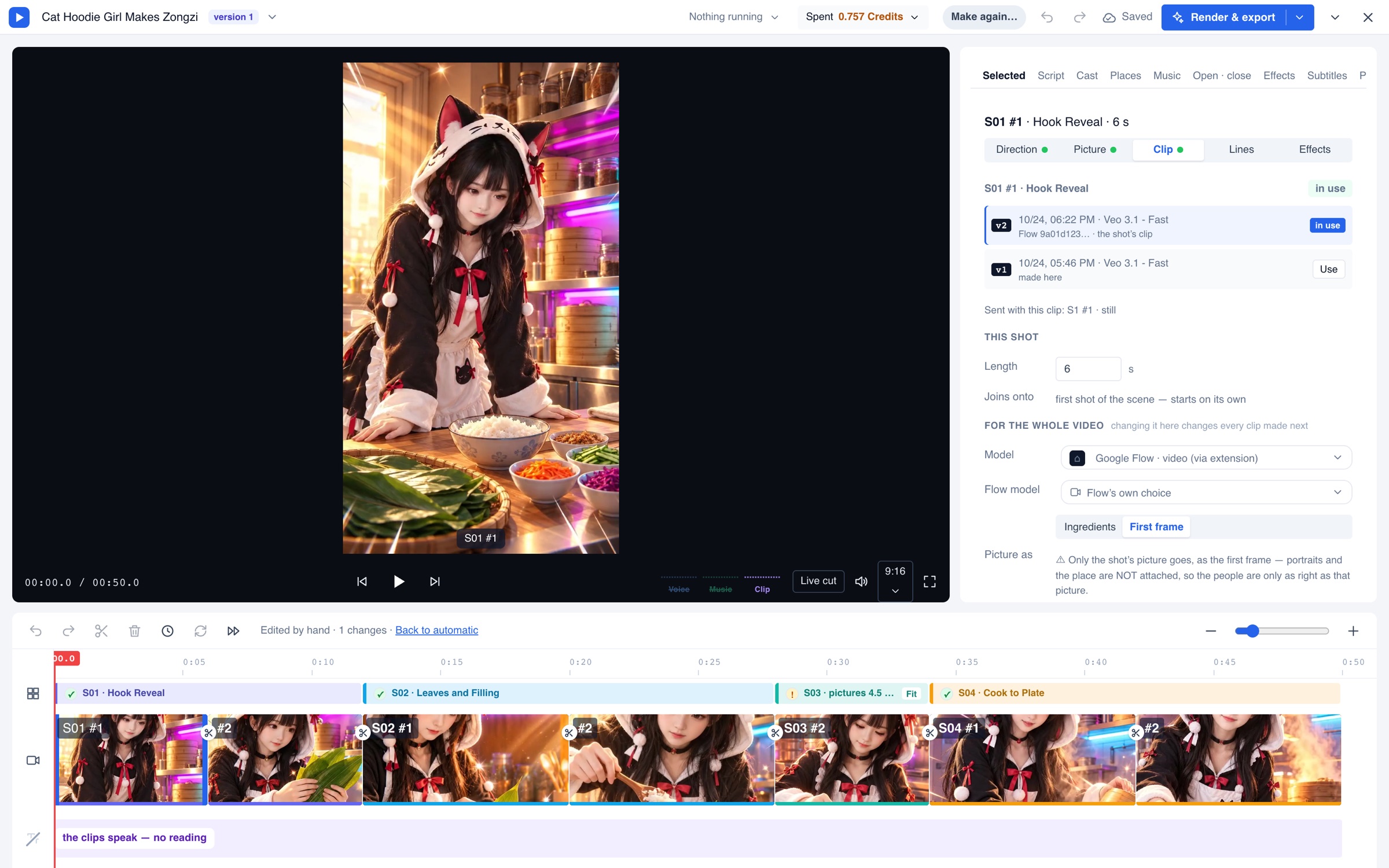
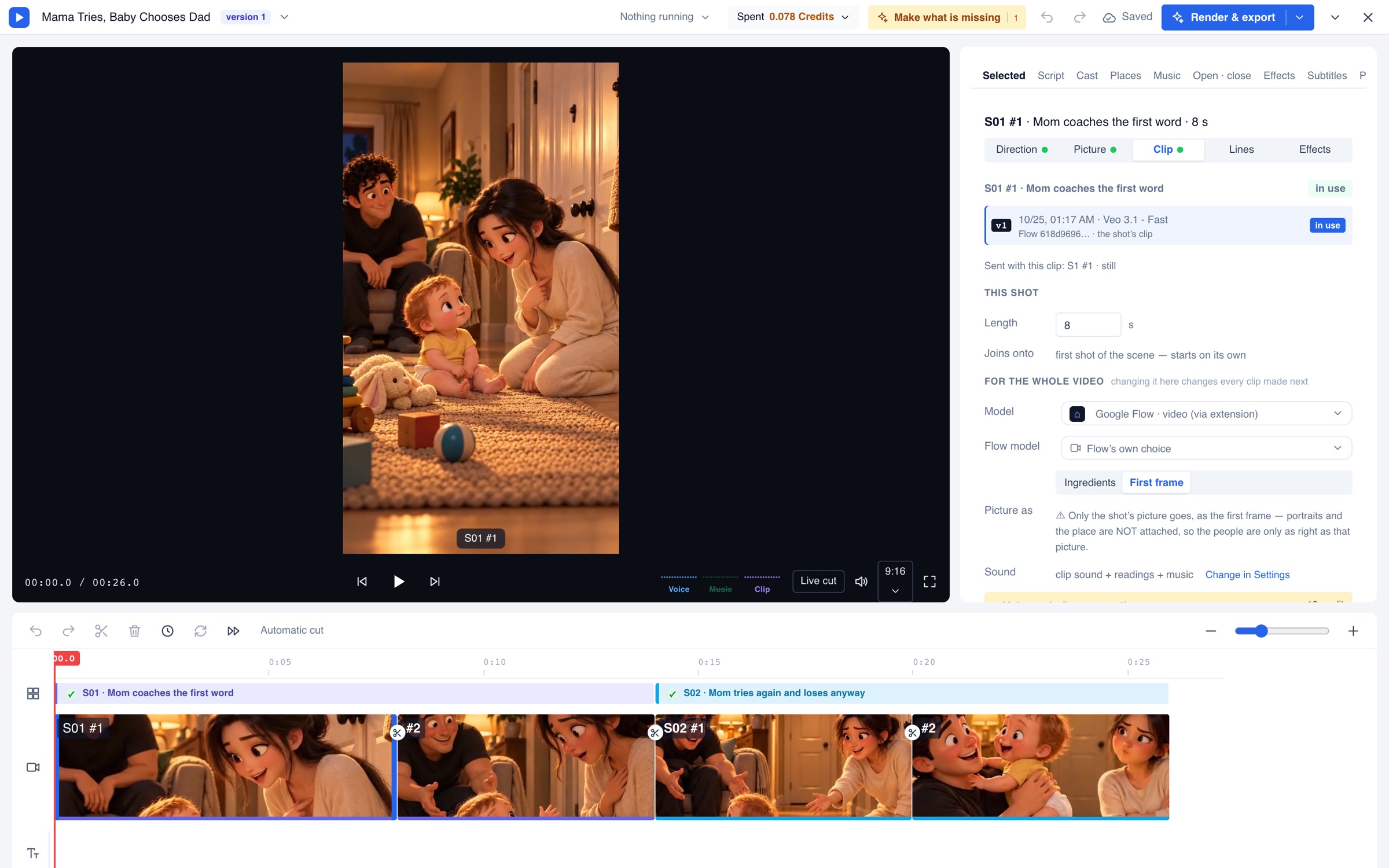
A real editor, with AI doing the heavy lifting
The run bar makes whatever is missing, in order. Each step shows its price before it runs. Then cut, trim and swap on the timeline like any editor, and remake only the shot you want changed.
- Pick the image and video model for each job
- Music from the library or YouTube, intro, end card and logo
- Subtitles burned in or as .srt, export up to 4K
- Several versions from one cut: 16:9, Shorts, 1:1
- 1ScriptScenes, shots and lines
- 2LinesDialogue fitted to shots
- 3CharactersA sheet per person
- 4SettingsOne picture per place
- 5ShotsA still for every shot
- 6ClipsStills set in motion
- 7FitCut to the voice
- 8RenderVoice, music, subtitles
- 9PublishTo YouTube, when you say
4 · Series
Playlists that run themselves
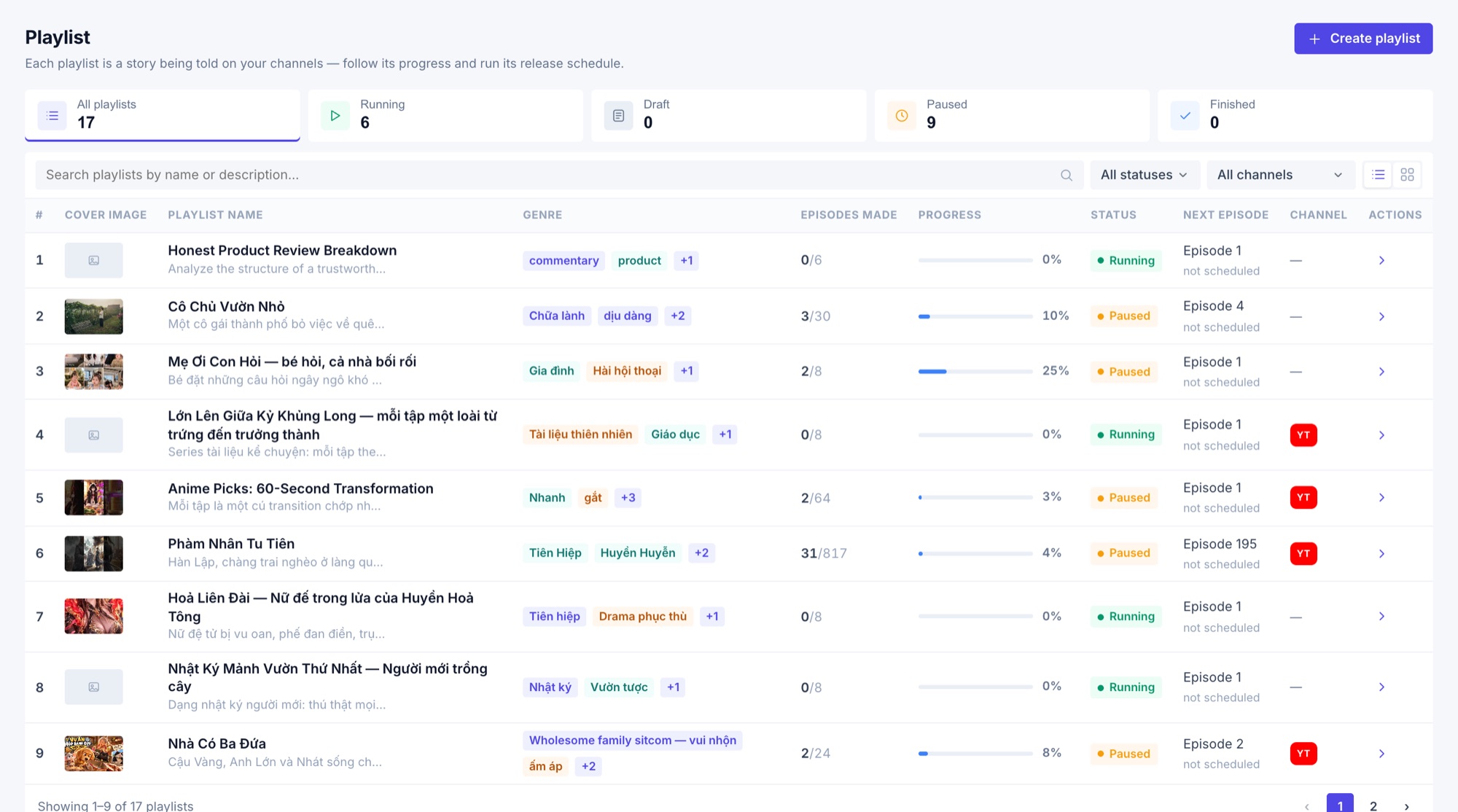
A playlist is a series. Point it at a story, choose how many chapters make an episode, and set an air time. Each episode is built ahead of time and waits for you, or goes out on schedule if you want it to.
- Several schedules per playlist, plus Run now
- Optional stop at casting until you pick the voices
- Series branding: logo, intro and outro, narrator, music
- Publish as Public or Private, or keep every episode for review
5 · Publish
Publish to YouTube, then follow every video
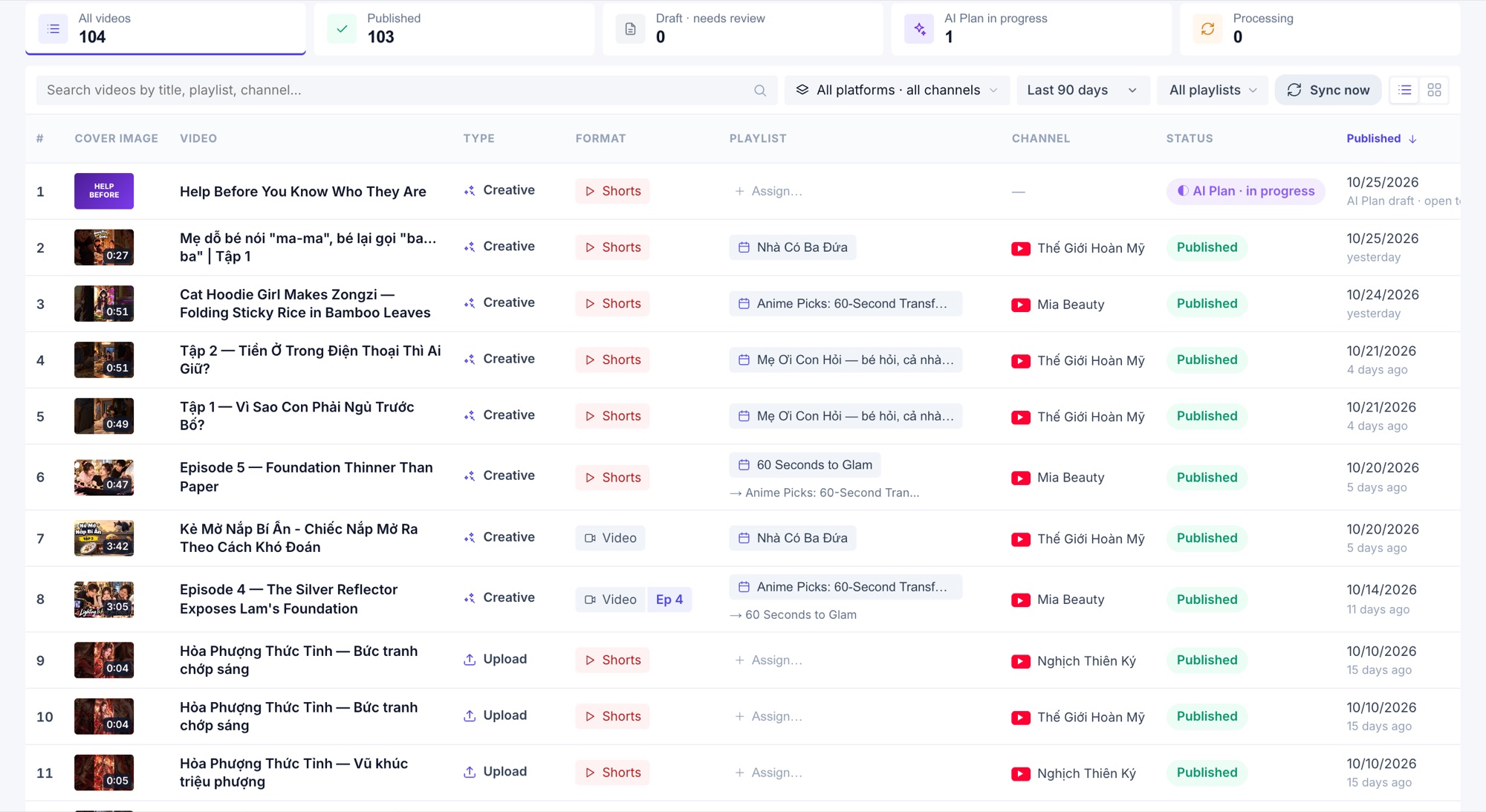
Every video, published or in progress, in one table with its playlist, channel and live numbers. Review the SEO before anything changes on YouTube, and design the thumbnail without leaving the page.
- Live views, likes, comments and watch time per video
- Title, description, tags, captions and thumbnail in one step
- Comments with AI-drafted replies you approve
Connections
Your channel, your models, your accounts
Statistics, publishing, playlists, captions, thumbnails and comments.
AvailableGemini, Veo, GPT, Seedream, Seedance and more. Pick per step, and see the price first.
AvailableRun jobs in your own ChatGPT, Gemini and Google Flow accounts from the browser.
Beta · paid plansWaiting for approval from those platforms. Open to test accounts only.
In reviewPricing
Start free. Pay as you grow.
Every plan includes the full Studio. Plans set how much you can make and keep. AI work is paid in Credits, and 1 Credit = 1 US dollar.
Paid plans start from the Free plan: sign in, then upgrade in Settings → Billing & Plans. You see the cost of every AI step before it runs, and you can top up Credits at any time.
FAQ
Questions, answered
Do I need a credit card to start?
No. Sign in with Google and you start on the Free plan with a starter Credit. You only add a payment method when you upgrade or top up.
Will CreatorOS post to my channel without me?
Only if you tell it to. A video you make in the Studio is published when you press Publish. A playlist publishes on its own only if you set up a schedule and switch publishing on for it, and you choose Public or Private.
What are Credits?
Credits pay for AI work: writing, pictures, clips and voices. 1 Credit = 1 US dollar. Paid plans include an AI allowance every month, and you can top up anytime. Before a step runs, the Studio shows what it is expected to cost.
Who owns the videos?
You do. Your material and the videos made from it are yours. You do need the rights to whatever you bring in, such as someone else’s story, video or music. See the Terms.
Which channels can I connect?
YouTube: statistics, publishing, thumbnails, SEO and comments. TikTok and Facebook Pages are waiting for approval from those platforms. Until then, only test accounts can connect them, and TikTok is read-only.
Can I use my own ChatGPT, Gemini or Google Flow account?
Yes, on paid plans, with the CreatorOS Bridge browser extension (beta). It runs jobs in your own signed-in browser, under those services’ terms and limits.
What happens when my storage is full?
You can still watch, publish and download what you have. Making anything new waits until you delete something or move to a plan with more storage.
Which languages does the app speak?
The app is in English, Vietnamese and Japanese. Videos can be voiced and subtitled in the language of your story, and a separate English version can be exported.
Can I cancel or change plans?
Anytime, in Settings → Billing & Plans. You can switch now or at the end of the period, and the screen shows the exact amounts before you confirm.
What do you do with my data?
We use it to run the service for you. We do not sell it, and we do not use your content or YouTube data to train AI models. The Privacy Policy has the details.
Make your first video today
Sign in with Google, describe the idea, and watch the Studio build it. Nothing goes live until you say so.